Choosing a Compact Pen Display for a Small Creative Workspace
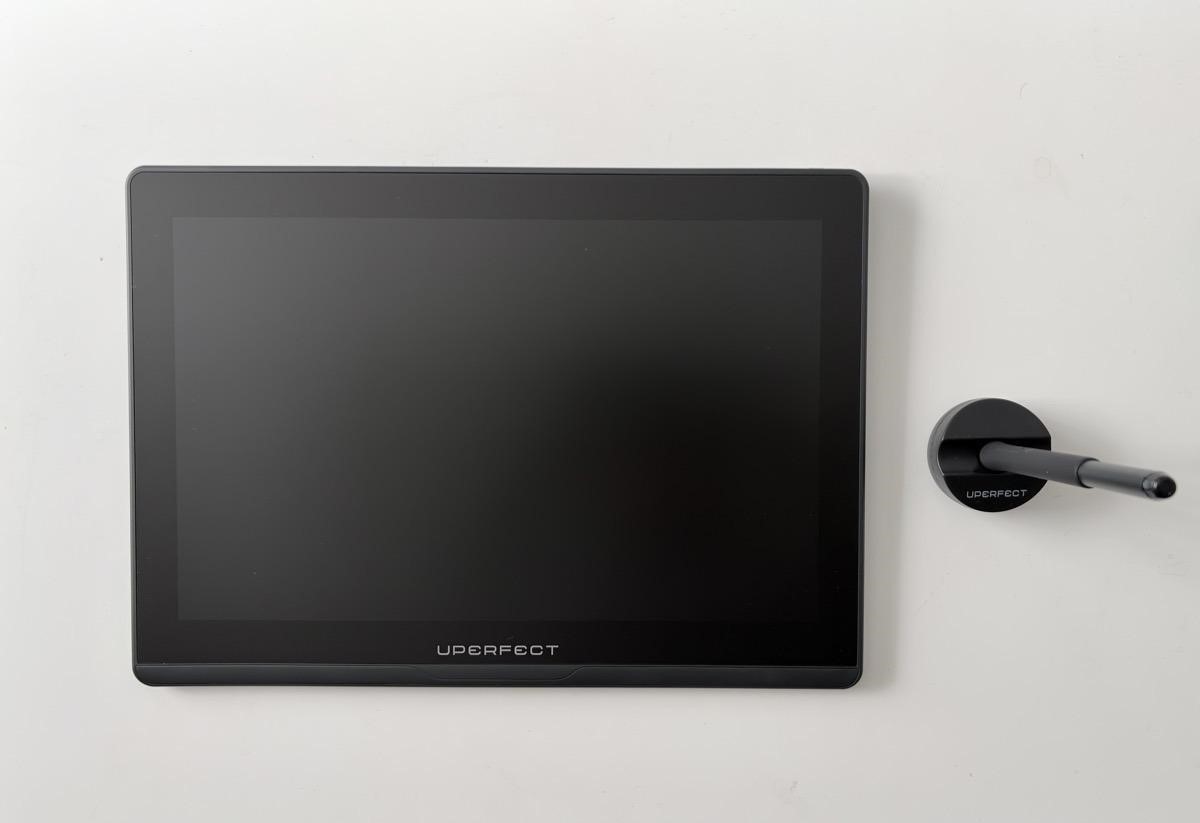
A compact pen display can make digital drawing feel more direct without requiring a permanent studio desk. However, the screen is only one part of the workspace. Your laptop, keyboard, cables and drawing hand all need somewhere to go. Choosing the right size means considering the complete arrangement, not simply buying the highest resolution you can afford.
Root Nation’s UPERFECT UD14BQ review offers a useful case study. Its reviewer evaluated drawing behaviour, the stand and everyday setup alongside the display itself. The observations show why a small pen display should be judged as a working tool: precise strokes are valuable, but so are accessible shortcuts and a comfortable position.
Judge the line before counting pressure levels
Pressure sensitivity is easy to advertise as a large number. More informative questions are whether a light stroke starts reliably, whether slow diagonals look steady and whether the cursor stays aligned near the edges. Those are behaviours you will encounter repeatedly while sketching, inking or editing a mask.
In Medibang and Clip Studio, the RN reviewer reported smooth tapers and steady slow diagonal strokes on the UD14BQ. The review also describes good cursor alignment near the edges. These are observations from that reviewer’s setup; they do not remove the need to check driver support for your own operating system and preferred application.
If you can try a display, draw the same small set of marks you use in normal work. Include light hatching, curved strokes and a slow line across the screen. Test with your usual brush settings instead of a demonstration brush designed to hide irregularities.
Leave space for the rest of your workflow
A sharp panel can still feel cramped once tool palettes surround the canvas. Think about the layout of your actual application. If you keep layers, references and brush controls visible, check how much drawing area remains at a comfortable interface scale. A compact screen may suit illustration while feeling restrictive for a different task.
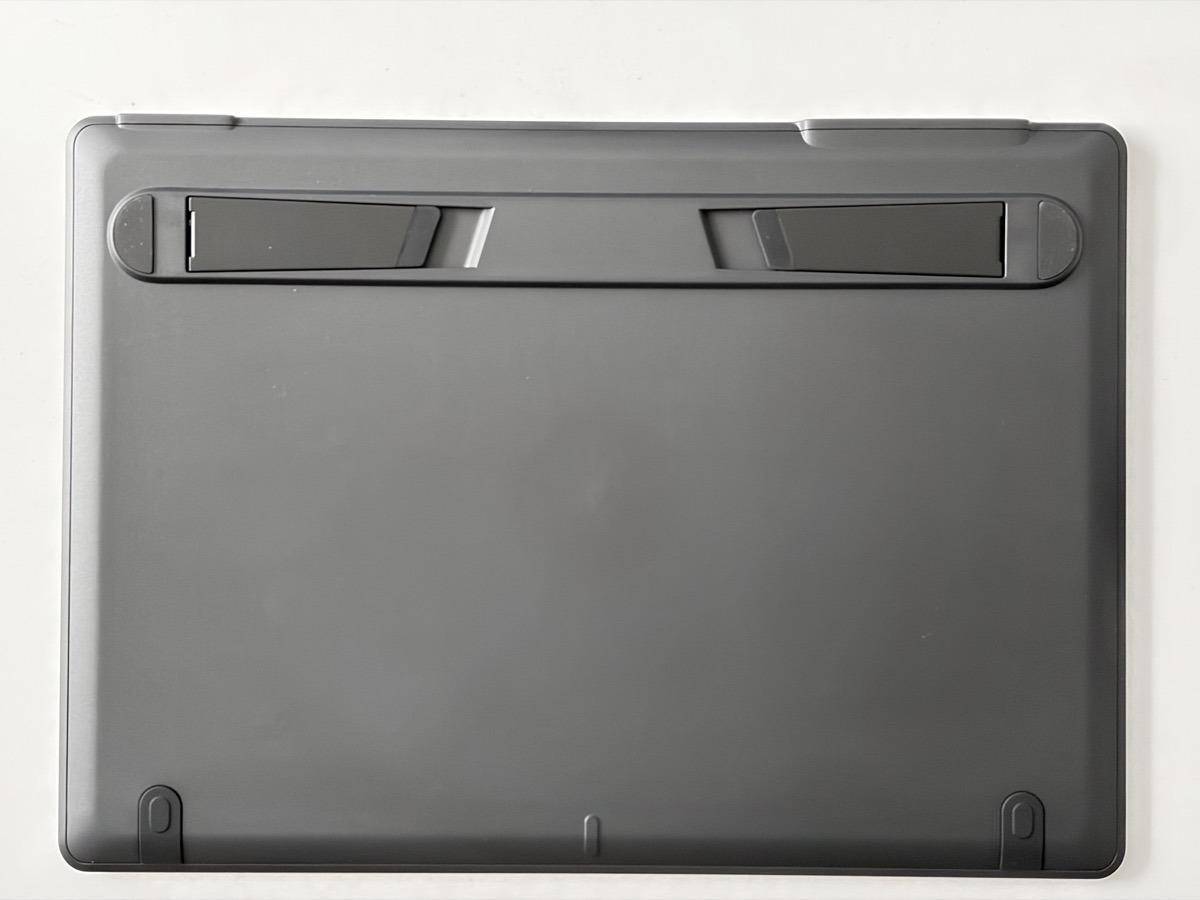
The UD14BQ has no physical shortcut keys on its frame, and Root Nation’s reviewer found a nearby keyboard useful. Its built-in feet also provide a single working angle. Those details affect desk planning: leave room beside the display for shortcuts, and assess whether the stand angle suits your chair and working posture before assuming you can dispense with other accessories.
Check what your USB-C port can do
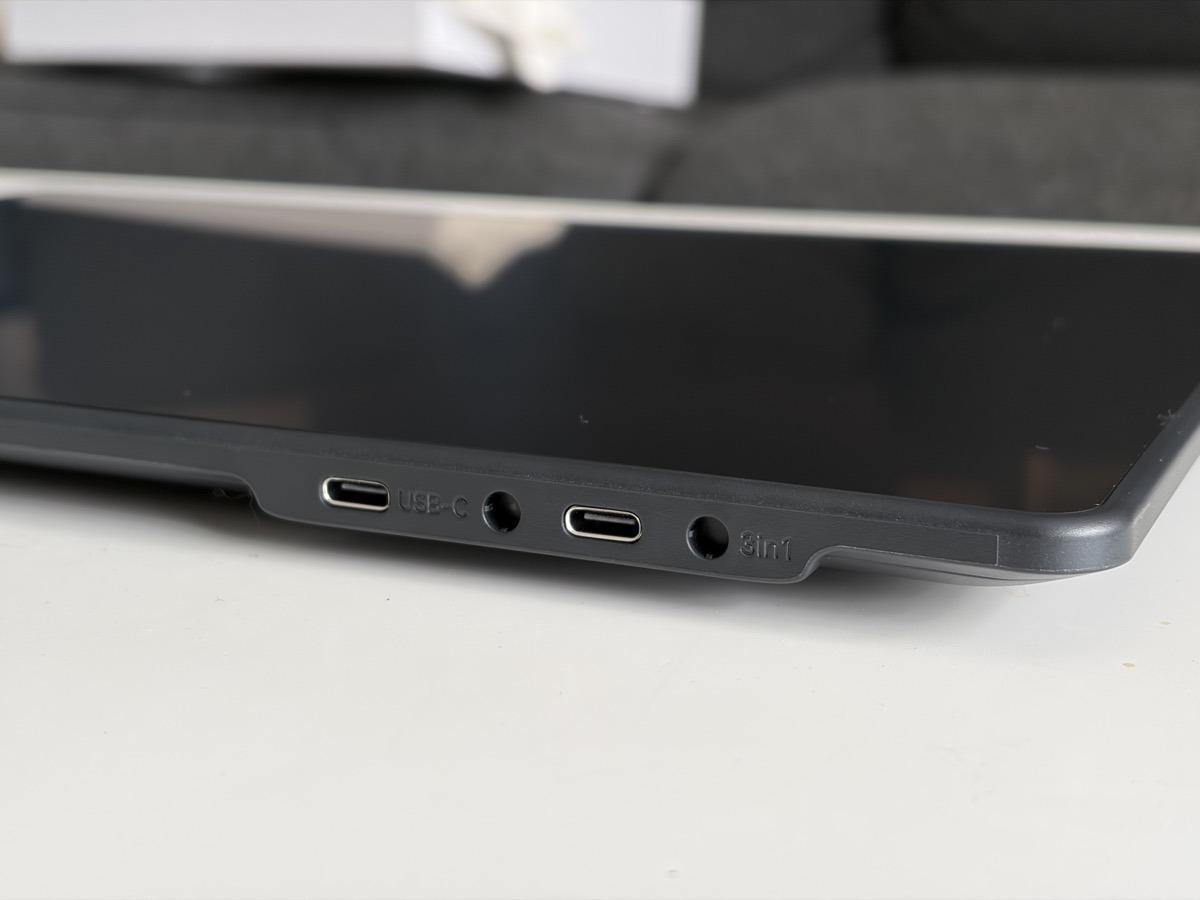
A USB-C connector does not automatically mean a laptop can deliver video through it. Check the computer’s documentation and the display’s connection instructions together. Confirm the required video, data and power paths, including the capabilities of the cable. A charging cable alone may not provide the connection a drawing display needs.
The RN review describes a single-cable option for compatible computers and a separate connection arrangement for systems without suitable USB-C video output. It also distinguishes the display’s video-capable connection from its power-only port. Plan the cable route before buying, especially if your laptop has few ports or already uses a dock.
Buy for the room where you draw
Consider reflections and ambient light, not just colour claims. A screen that looks comfortable on an indoor desk may behave differently beside a bright window. Likewise, a textured surface can change how the pen feels. Where possible, evaluate it under conditions similar to your own room.
Root Nation’s display reviews offer additional context for comparing screen formats, although ordinary portable monitors do not replace a pen display’s drawing input. Build your decision around reliable line control, enough usable canvas, compatible connections and a workable position. That gives the specification sheet a clear purpose: helping you assemble a workspace in which drawing feels straightforward.