3 Tips to Get Better Picture Quality From AR Glasses
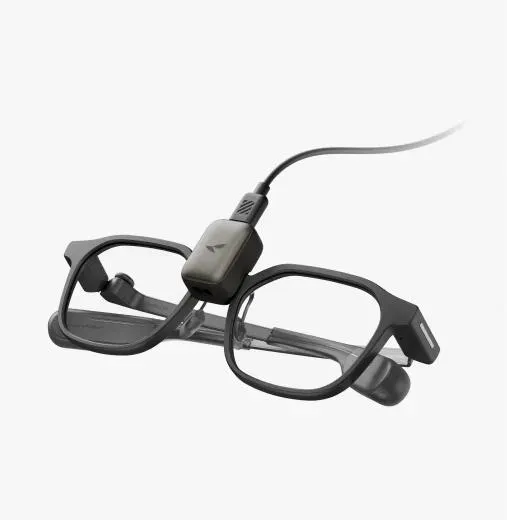
Better picture quality from AR glasses starts with a few practical adjustments, not guesswork. If text looks soft, overlays seem dim, or the image feels harder to focus on than expected, the cause is often tied to settings, connection quality, or fit. AR glasses place digital content directly in your line of sight, so small setup issues can noticeably affect clarity and comfort. The good news is that you can often improve sharpness and viewing consistency in minutes. By tuning display settings, confirming your device and accessories work properly, and wearing the glasses in the right position, you can get a cleaner, easier-to-read image. These three tips focus on the changes that usually make the biggest difference in everyday use.
Tip 1 — Optimize Display Settings for Sharper Visuals
Adjust Brightness, Contrast, and Color Settings
Start with brightness. If it is too low, digital elements can look washed out; if it is too high, fine details may bloom and become harder to read. Raise brightness until text and interface elements appear crisp without creating glare or eye strain. Contrast also matters because stronger separation between light and dark areas makes menus, captions, and notifications easier to distinguish. If your AR glasses or companion app offers color controls, use a neutral setting first, then fine-tune for readability rather than dramatic effect. A balanced image usually looks sharper over time than an overly vivid one. Test your settings in the lighting conditions where you actually use the glasses most, since indoor and outdoor environments can change perceived clarity.
Match Resolution and Refresh Rate to Your Device
Picture quality depends on the signal your source device sends. If your phone, tablet, or computer outputs a lower resolution than the glasses support, the image may look softer than it should. Check display output settings and select the sharpest supported mode for your setup. Refresh rate matters too. A mismatched or unstable refresh rate can make motion look less smooth and reduce overall visual comfort, especially when reading moving interface elements. With RayNeo iO Smart Glasses, the binocular MicroLED plus diffractive waveguide display is designed to present a 33-inch invisible AI display with 1300 nits of eye-level brightness and a 23.5° field of view. To get the best result, pair those display strengths with the correct video settings on the connected device.
Tip 2 — Check Connections and Device Compatibility
Ensure a Stable Connection and Proper Video Output
A weak or inconsistent connection can reduce picture quality even when the display itself is capable of sharp output. If your ar glasses rely on a wired video source, make sure the cable is fully seated and supports the required video standard rather than charging only. For wireless features, keep Bluetooth pairing stable and update firmware if connection drops affect performance. Also confirm that your source device is sending actual video output, not a mirrored mode with limited resolution or unnecessary scaling. Some devices default to settings that prioritize compatibility instead of clarity. Rechecking output mode, display scaling, and app permissions can solve soft or cropped visuals quickly. A stable signal helps preserve sharp text, cleaner graphics, and more reliable image consistency during daily use.
Choose Compatible Devices and Accessories
AR glasses perform best when they are paired with devices and accessories built to support their display and control features properly. Before troubleshooting picture quality, verify that your phone, tablet, or computer supports the required video output method and any needed software features. An incompatible adapter, low-quality cable, or unsupported port can introduce scaling issues, signal instability, or limited resolution. If your glasses use app-based functions, install the latest version so display controls and firmware updates work as intended. Accessories should also match the use case. A secure, certified connection is usually better than a generic add-on that only works partially. When compatibility is right from the start, the image tends to be sharper, controls respond more reliably, and the overall viewing experience feels far more polished.
Tip 3 — Improve Fit and Viewing Comfort
Position Your AR Glasses for a Clearer Image
Fit has a direct effect on perceived sharpness. If the display zone does not align well with your eyes, text can look uneven, edges may blur, and the image may seem dimmer than expected. Adjust the glasses so they sit level and stable across the bridge of your nose without tilting forward or pressing too low. Small angle changes can noticeably improve clarity. Take a moment to center the display in your natural line of sight rather than forcing your eyes upward or downward to find it. Lightweight frames help with this because they stay comfortable during longer sessions. A secure fit also reduces the need for constant readjustment, which makes digital overlays easier to track and helps maintain a more consistent, comfortable image throughout use.
Keep Lenses Clean and Reduce Visual Distractions
Even a high-quality display can look less sharp when the lenses are smudged or the viewing environment is distracting. Clean the lenses regularly with a proper microfiber cloth to remove fingerprints, dust, and skin oils that scatter light and soften details. Avoid rough fabrics or harsh cleaners that can damage coatings. It also helps to reduce competing light sources around you. Bright reflections from windows, overhead lights, or glossy surfaces can interfere with how clearly digital content appears. If possible, change your position or angle to limit glare. Visual clutter matters too. Using AR glasses in a calmer environment can make text, notes, and notifications easier to focus on. A clean lens and a controlled viewing space often produce an immediate improvement in apparent picture quality.
Conclusion
If you want better picture quality from AR glasses, focus on the factors you can control first. Fine-tune brightness, contrast, resolution, and refresh rate so the display is working at its best. Then confirm your cables, wireless connection, source device, and accessories support proper video output without scaling or signal issues. Finally, improve fit, lens cleanliness, and your viewing environment to make the image look clearer and feel more comfortable over time. These steps are simple, but they solve many of the most common clarity problems users notice in everyday wear. A sharper AR experience usually comes from better setup, not more complicated fixes. Make these adjustments methodically, and you should see cleaner text, steadier visuals, and a more enjoyable overall viewing experience.