
How Does Screen Mirroring Work with a Rented iPad Pro?
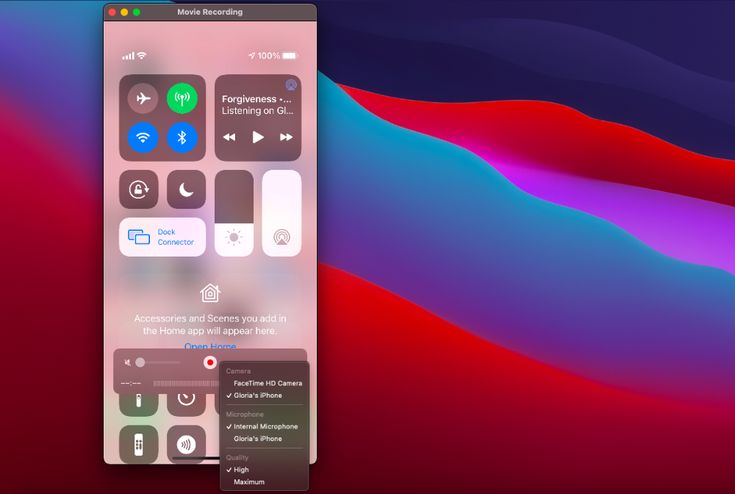
Screen mirroring on an iPad Pro sends whatever is on the tablet’s display to a bigger screen, projector, or TV in real time, either wirelessly through AirPlay or through a physical cable using an adapter. Wireless mirroring works best when the venue has a compatible receiver or Apple TV already connected to the display, while a cable connection is the more reliable choice on rented equipment at a venue with unfamiliar Wi-Fi or an unknown network setup. Most event teams use a cable as the backup plan even when they intend to mirror wirelessly, since a five pound adapter is a lot cheaper than a stalled presentation.
Anyone who’s had to ipad pro rent for a conference, product demo, or client meeting has probably run into the screen mirroring question at some point. It sounds simple on paper, tap a button and your tablet’s screen appears on the big display, but the reality depends heavily on what hardware is already at the venue and whether the rented iPad has been set up correctly beforehand.
What Screen Mirroring Actually Means
Screen mirroring is the process of duplicating everything shown on one device’s screen onto another display in real time. On an iPad Pro this usually means whatever app is open, a slideshow, a design file, a video, appears simultaneously on a projector or television, letting a small group become a large one without anyone crowding around a nine inch screen.
It’s worth separating this from screen sharing in a video call, which sends a similar signal but over the internet to remote viewers rather than to a physical display in the same room. Mirroring, in the context most people mean it at events, is a local connection between the tablet and a nearby screen, and it’s this local connection that tends to cause confusion when rented hardware is involved rather than a device someone already owns and understands.
Why Rented iPads Sometimes Need Extra Preparation
A rented iPad Pro isn’t automatically configured for your specific venue, and that’s exactly why testing matters more than people expect. Every venue has a different combination of display, receiver, and network setup, and a rented device has no history with any of it. Assuming a tablet will simply connect the same way your personal iPad does at home is one of the most common reasons presentations start late.
A well-run supplier such as The Tekk Group can pre-configure rented units with the right settings, restrictions, and even a locked down single app mode if that’s what your event needs, but screen mirroring itself still depends on what’s already installed at the venue on the day. Confirming this with the venue ahead of time, and asking your supplier what’s included in the setup, avoids a frustrating scramble five minutes before a presentation is due to start.
It also helps to know whether the iPad has been factory reset between rentals, since old AirPlay connections and saved networks from a previous booking can sometimes cause confusion if not cleared beforehand.
The Two Ways to Mirror an iPad Pro
1. Wireless Mirroring with AirPlay
AirPlay is Apple’s built in wireless mirroring technology, accessed by swiping down from the top right corner of the iPad Pro and selecting Screen Mirroring. It looks for nearby AirPlay compatible receivers, typically an Apple TV or a smart display with AirPlay support, and connects over the same local Wi-Fi network both devices are joined to.
2. Wired Mirroring with an Adapter
A wired connection uses Apple’s USB-C to HDMI adapter, plugged directly into the iPad Pro and then into a projector, monitor, or TV’s HDMI input. This method skips Wi-Fi entirely, which makes it the more dependable option in venues with unpredictable network coverage or restricted guest access.
Wireless vs. Wired Mirroring: Which Should You Use?
| Factor | AirPlay (Wireless) | Adapter (Wired) |
| Setup speed | Fast once connected | Fast, no network needed |
| Reliability at unfamiliar venues | Depends on venue Wi-Fi | Consistent, not network dependent |
| Movement while presenting | Full freedom to walk around | Limited by cable length |
| Equipment needed | Compatible receiver only | USB-C to HDMI adapter and cable |
| Best use case | Familiar venues with tested Wi-Fi | New venues, backup plan, live demos |
Setting Up Screen Mirroring Step by Step
- Confirm the display or projector supports AirPlay, or has an HDMI input available if going wired.
- For wireless, join the iPad Pro to the same Wi-Fi network as the AirPlay receiver before the event starts.
- Open Control Center by swiping down from the top right corner and tap Screen Mirroring.
- Select the correct receiver from the list, entering a passcode on screen if one is requested.
- For wired setups, connect the USB-C to HDMI adapter to the iPad Pro, then plug the HDMI cable into the display.
- Switch the display’s input source to match the HDMI port the adapter is connected to.
- Test the full setup at least twenty minutes before your audience arrives, not right as doors open.
Common Reasons Mirroring Fails at Events
- The iPad and the receiver are joined to different Wi-Fi networks or guest network isolation is blocking the connection
- The venue’s display doesn’t actually support AirPlay despite assumptions it would
- An older or incompatible adapter is used instead of a genuine USB-C to HDMI adapter
- Screen mirroring restrictions are still active from a previous booking or management profile
- The display’s HDMI input hasn’t been manually selected after the cable is connected
Key Terms Worth Knowing
AirPlay: Apple’s proprietary technology for streaming audio and video wirelessly between Apple devices and compatible receivers over a shared network.
HDMI adapter: a small physical connector that converts the iPad Pro’s USB-C port into a standard HDMI output for wired displays.
Single app mode: a device restriction that locks an iPad to one specific app, commonly used for kiosks, registration desks, or trade show demos.
Other Equipment Businesses Often Rent Alongside iPads
Events that need iPads for demos or registration desks frequently need other hardware at the same time. A company running a product launch might rent a laptop for business use behind the scenes, handling registration data or presentation control, while also booking a separate laptop for events requested for a staffed demo station. Larger organisations sometimes combine this with a broader corporate laptop rental for staff attending, alongside the iPads used for customer facing interaction, since sourcing everything from one supplier tends to simplify delivery and collection on the day.
Frequently Asked Questions
1. Can you mirror an iPad Pro to a TV without an Apple TV?
Yes, using a USB-C to HDMI adapter connected directly to the TV’s HDMI input, which works without needing an Apple TV or AirPlay receiver at all.
2. Does screen mirroring work without an internet connection?
Wired mirroring through an adapter doesn’t need an internet connection or Wi-Fi. AirPlay does require a shared local network, even if that network isn’t connected to the internet itself.
3.Why does my rented iPad not show up as an AirPlay option?
This usually means the iPad and the receiver aren’t on the same Wi-Fi network, or the display doesn’t actually support AirPlay despite appearing modern enough to.
4. Is wired or wireless mirroring better for a live product demo?
Wired is generally more reliable for live demos since it removes network dependency entirely, though wireless offers more freedom to move around while presenting.
5. Can multiple iPads mirror to the same screen during an event?
Only one device can mirror to a single display at a time, so events needing multiple presenters typically switch the input manually or use a signal switcher.
6. Do I need to buy my own HDMI adapter for a rented iPad Pro?
Most rental suppliers can include the correct adapter as part of the booking, so it’s worth asking rather than assuming you need to source one separately.
7. Will screen mirroring drain the iPad’s battery faster?
Yes, particularly with wired connections that also charge through the same port, so keeping the device plugged in during longer sessions is recommended.
8. Can I lock a rented iPad to only display one app while mirroring?
Yes, single app mode can be applied before the rental is delivered, which is common for kiosk style displays and unattended demo stations.
Final Thoughts
Screen mirroring on an iPad Pro isn’t complicated once you know which method suits your venue, but it does reward a bit of preparation rather than trusting it to work perfectly on the first try. Testing the connection ahead of time, carrying a backup adapter, and confirming what the venue actually supports removes most of the risk before your audience ever sees the screen.
The Tekk Group configures rented iPads with exactly this kind of event use in mind, checking mirroring compatibility and preparing backup options so presenters aren’t troubleshooting cables minutes before they’re due on stage. A little planning here goes a long way toward a presentation that just works.


