How Luminar Can Improve Skin in Portrait Photos
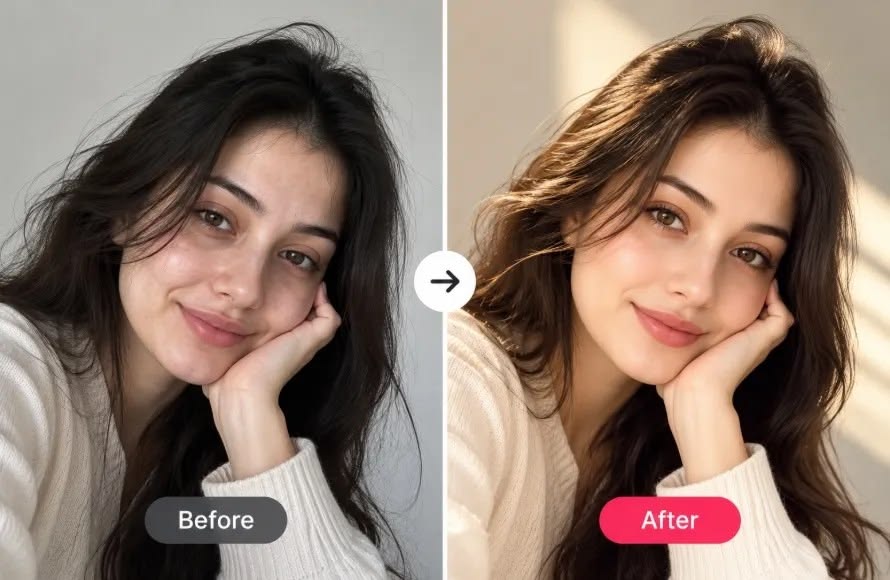
A portrait may already have good lighting, a natural expression, and an interesting setting. Yet, a few temporary blemishes, uneven areas, or distracting highlights can distract the viewers and ruin the intended emotion. That is why face editing matters.
The advance of AI made these tasks accessible to inexperienced photographers and sped up professional workflows, helping advanced artists process vast volumes of files and match strict deadlines.
AI-based tools in skin retouching software like Luminar identify common skin issues and refine them using adjustable controls. In this guide, we explain how to edit portrait photos in Luminar. We provide an easy, step-by-step workflow. The aim is not to create perfectly smooth skin but to make the picture more appealing without sacrificing natural textures and real emotions.
1. Define the Problem
AI skin retouching starts with selecting an image to work with. See the overall look. The skin may not be the only issue you should address. Import your image into Luminar and navigate to the Edit tab. Correct brightness, contrast, and colors by tweaking the sliders. Keep these changes restrained. Skin can look different after even a small shift in overall tone.
If not, look for temporary distractions such as a spot, a strong highlight, or an uneven tone area. Focusing on them will make your future modifications more targeted and help preserve realism.
2. Use Skin AI
In Luminar, Skin AI is designed to address common issues such as temporary blemishes, uneven skin, and excess shine. This AI portrait retouching tool works as the photographer’s creative partner, not as a generic automatic substitute. It means that the final result remains under human control and is adjustable.
Apply a modest amount of skin smoothing first rather than immediately pushing the slider to a high level. Then use Skin Defects Removal to reduce temporary blemishes and Shine Removal when bright areas on the forehead, nose, or cheeks draw too much attention. If you feel like you’ve overdone it and the face looks plastic, remember that Luminar works non-destructively. It means you can dial back, cancel the adjustments, and reapply them at a lower intensity.
3. Maintain Realism
Beauty retouching is about underlining the natural beauty, not altering the face until it becomes unrecognizable. Zoom out and check the face at the size where people will normally view the image. Freckles, natural lines, and other distinctive details should remain intact because they represent the person’s character and make the portrait more emotionally appealing.
Context is key. A tight close headshot requires more precise editing in the cheeks and forehead, while a full-length shot will generally only require a spot of light retouch. A fashion portrait typically requires a more finished look, whereas a family or travel portrait can look odd if it’s overly obvious that it has been edited.
4. Refine Facial Features
With Luminar’s Face AI, you can make highly specific adjustments to facial areas. You may want to tweak the face lighting or reduce the prominence of dark circles, depending on the portrait. The Face AI recognizes face features, so rather than adjusting the whole photo, it applies adjustments selectively.
5. Review and Save
Take a quick look at the edited portrait versus the original in before-and-after mode. Is the face easily recognizable, and does it look like the same person? Does the skin appear to harmonize well with the other tones in the light? Look at the facial transition down the neck or other exposed skin. You should also compare the background and clothes. Noticeable facial modifications might make the overall image feel out of balance when it is lit naturally.
Ask yourself: Does this correction eliminate an actual distraction? Is the texture of the skin still visible? Does this photograph still feel like the original image you shot? If you answer yes to all these questions, you are ready to save and share your photo.
Conclusion
Great portrait retouching isn’t about creating a different person-it’s about revealing what’s already there. Just a few intelligent edits can minimize distractions and preserve all the details that define a face naturally. The AI-powered editing assistance can handle time-consuming edits, while the slider-based controls let you set the level of subtlety or drama. Open up a favorite portrait file in Luminar, add a bit of Skin AI, and watch the small adjustments make a significant difference.