QuickBooks Backup File Won’t Restore: Complete Recovery Guide
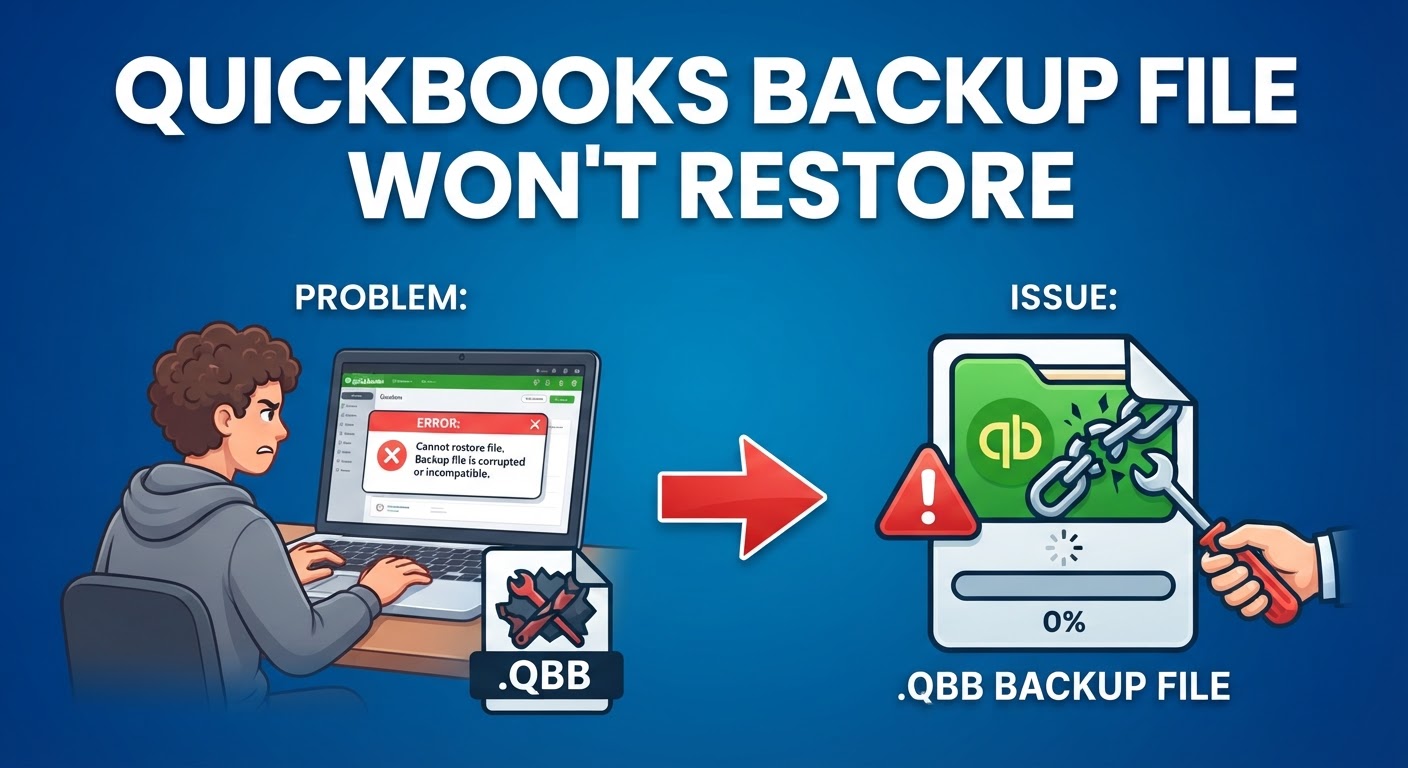
To restore a corrupt company file or repair company file errors, you may be required to restore the backup in QuickBooks. But, sometimes, your QuickBooks backup fails to restore or you may face issues like restore process freezes, the backup file fails to recognize, or error messages while trying to restore the backup file. In most cases, the backup restore fails due to damaged backup file, version incompatibility, file location issues, or company file corruption. In this complete guide, we will understand why restore failure happens and know the fixes to resolve the issues.
Why your QuickBooks Backup File Wouldn’t Restore?
You may fail to restore your QBB file due to one of the following reasons:
- Corrupted backup file (.QBB).
- QuickBooks version compatibility issues (Restoring a backup created in a newer QuickBooks version into an older edition often fails).
- If the original company file you have used to create backup is corrupted.
- Insufficient permissions can stop QuickBooks from restoring the backup file properly.
- Incorrect file location. For example, your backup stored on network drive or external device may not be accessible during the restore process.
- Lack of storage space on your system where your backup file is saved.
Common Issues and Error Messages when Restoring QuickBooks Backup File
Here are some common issues and error messages you may encounter while restoring backup file:
- QuickBooks Cannot Restore This Backup
- Restore Failed
- This Is Not a QuickBooks Backup File error
- 6000 Series Errors (e.g., -6000, -83; -6010; -6147)
- Error: Restore failed. Can’t remove log file
- Company File Is Damaged
- Restore Process Stops or Freezes
How to Fix QuickBooks Restore Failed Error?
First, try these checks:
Check Backup File integrity
Restore failure issue in QuickBooks usually occurs due to a damaged or incomplete backup file. So, make sure your .QBB file is valid and readable before you try to restore the file.
Confirm the Backup File has a .QBB Extension
You can check and make sure the backup file has .QBB extension.
Check the Backup File Size
If the file size is small, it may indicate that the backup was not created properly or it is corrupted.
Test Backup File Accessibility
If the backup file is stored on any network location, make sure it is accessible and also check you have the necessary permissions.
Check System Requirements
Make sure your system meets the minimum system requirements according to the version of application you are using.
Check QuickBooks Updates
Make sure your QuickBooks application is up-to-date before you try to restore a backup file.
Proven Fixes to Resolve QuickBooks Backup Restore Failed Issue
If the restore fails after performing the above checks, follow the proven fixes below to resolve the issue.
Fix 1 – Move the Backup File to a Local Drive
If you fail to restore a backup that is stored on a network, then you can try to copy it to your system’s local hard drive and then try restoring again. This can prevent failure due to connectivity issue.
Fix 2 – Rename the Backup File
If the name of the backup file contains special characters (like ! @ # $ % ^ & *), it can block the restore process. You can check and rename the backup file using only letters and numbers, and then retry the restore.
Fix 3 – Verify and Rebuild Data
Corruption in the company file is one of the major reasons for restore errors in QuickBooks. If you’ve used the corrupt company file to create a backup file, then you can use QuickBooks’ built-in utility – Verify and Rebuild Data. It can help in case of company file corruption. First, run the Verify utility. If it finds issues with the QBW file, then rebuild its data using the Rebuild Data utility. Here’s how:
- In your QuickBooks application, go to the File menu.
- Select Utilities and then click on the Verify Data option.
- The Verify Data utility will start verifying the company file for any issues.
- If it detects any issue, it will show a message saying, “Data damage was found in the file. Rebuild your data to fix it.”
For Rebuild Data utility:
- In your QuickBooks application, go to Utilities and then click the option labeled Rebuild Data.
- The QuickBooks Information window is displayed. Click OK.
- Next, create the backup. When the backup process is completed, the tool will automatically start rebuilding the file.
- Wait till the rebuilding process is complete. Then, select OK.
If the above method fails to resolve company file issues, use the QuickBooks Tool Hub’s repair tools, such as QuickBooks File Doctor.
Fix 4 – Repair Corrupted QuickBooks Backup File
If your backup file is corrupted or damaged, then take the help of any professional QuickBooks repair tool like Stellar Repair for QuickBooks. It can help you repair backup files and company files in QB. And it also helps you recover data from damaged .QBB files, including transactions, lists, and other objects.
To Conclude
You can face the “QuickBooks Backup File Won’t Restore” issue due to several reasons such as file corruption, incorrect file naming, permission issues, or damaged folders. You can resolve the company file issues using the Verify and Rebuild utility. However, if the file is severely corrupted, you can opt for any professional repair tool like Stellar Repair for QuickBooks. It can help you resolve corrupt backup-related errors. By following the quick checks and implementing the proven fixes discussed above, you can resolve the “backup restore” error and recover the company data quickly.