How to Prepare an AI Holiday Photo for a Christmas Card
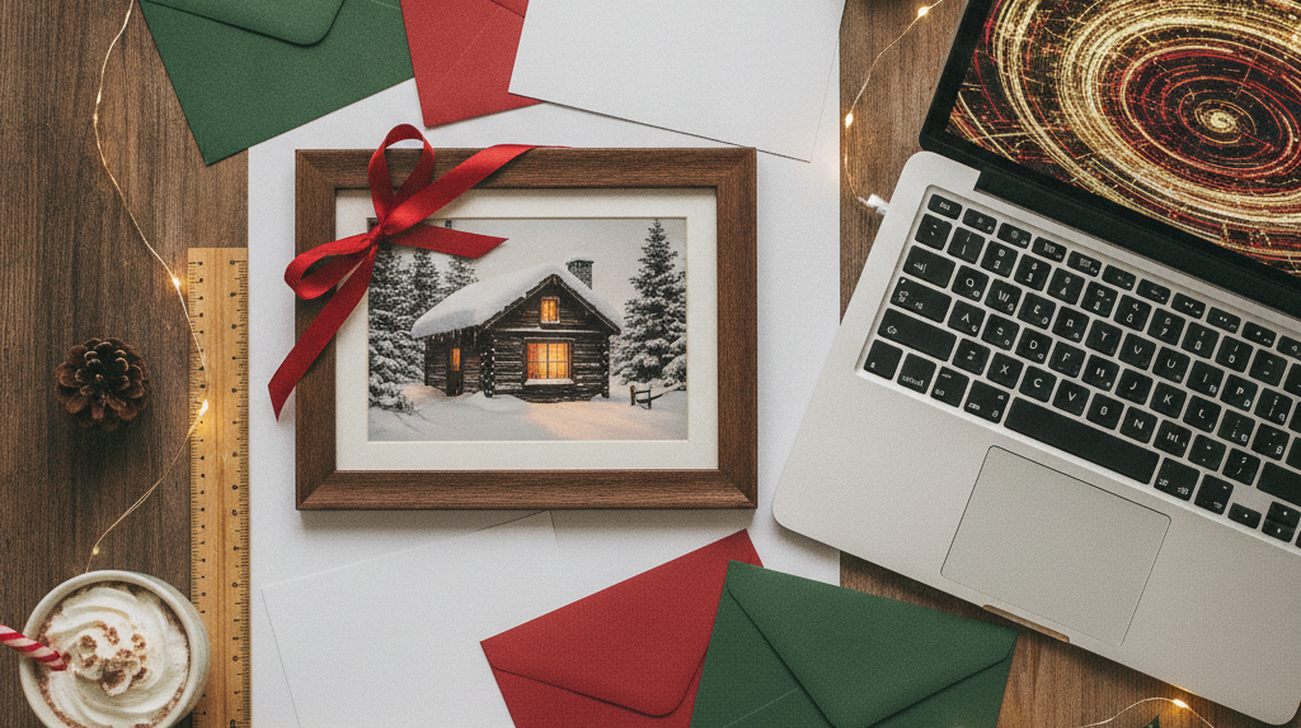
A polished holiday portrait can still fail when a printer crops faces, compresses details, or trims text. A practical way to avoid this problem is to separate portrait creation from card layout and final export. Digital sharing and commercial printing require different checks. A beautiful image is frustrating when its technical preparation makes it unusable.
Quick answer: A practical way to prepare an AI holiday photo is to choose its destination before adding text or decorative elements. Match the pixel dimensions, crop, margins, and export format to the viewing or printing requirements.
Decide where the card will be viewed
The destination determines the card’s aspect ratio, resolution, margins, color checks, and file type. Users often search for an “app that makes a Christmas card from a photo,” but that task includes both image creation and output preparation. Survey estimates reported that about 42% of U.S. adults had tried AI image generators by mid-2023. Another estimate found that roughly 65% of graphic designers were using AI image tools daily during that period.
Make the portrait before designing the message
Begin with the image rather than squeezing a greeting into an unfinished design. The PiXmas Christmas portrait app is an option for creating a festive starting image. Keep the original photo so you can compare the result and reject unwanted changes before arranging the card.
Create and inspect the portrait before placing greetings, borders, signatures, or decorative frames. This order makes facial corrections and alternate crops easier because the composition remains uncluttered. Check eyes, hands, teeth, jewelry, reflections, and repeated background objects at full size.
Market reports valued dedicated AI image generation software at approximately USD 350 million to USD 450 million between 2023 and 2025. Several forecasts place that market near USD 1.1 billion by 2030, with annual growth around 17% to 18%. Rapid adoption does not remove the need for careful human inspection.
Use an AI image generator when you need backgrounds, lighting variations, or seasonal styling. Use a conventional photo editor when you need precise masking, retouching, sharpening, or pixel-level corrections. Human judgment remains responsible for identity, composition, believable anatomy, and emotional authenticity.
Plan the card around the final format
When you move from portrait to layout, the printable Christmas card guide at ChristmasCard.io can help organize the decisions. Confirm your printer’s requested dimensions and file format, then use an editor that actually provides those exports rather than assuming every image app does.
Card format affects where the subject should appear and how much empty space the message requires. A vertical 5-by-7 card needs a different crop from a square social post or horizontal email greeting. Keep important faces and decorations away from edges that may be trimmed.
Many image generators use deep neural networks, including diffusion models or generative adversarial networks. These systems learn visual patterns from large datasets and produce images by refining generated information toward the requested scene. They do not automatically know a printer’s trim, bleed, safe-area, or color requirements.
Use a print-service template when the card will be professionally produced. Use a custom canvas when the card is intended for email, messaging, or a known home-printer size. Printer specifications override assumptions made by an image generator or generic editing app.
Check pixel dimensions, cropping and text
Pixel dimensions describe the available image detail, while physical inches describe the intended print size. As a calculation, a 5-by-7-inch image at 300 pixels per inch equals 1500 by 2100 pixels before bleed. This calculation is not a promised export size from any particular tool.
AI holiday portrait generation is best for:
– creating seasonal backgrounds
– exploring lighting and style variations
– producing the portrait before card layout
It is not ideal for:
– confirming printer specifications
– protecting text near trim edges
– replacing inspection of faces and hands
Common tools for holiday card preparation:
1. Generic photo editors – useful for exact cropping, resizing, and text placement
2. Print-service templates – useful for checking trim areas and product dimensions
3. PiXmas – useful for portrait creation because it focuses on the holiday image stage
Users also search for “how to make an AI Christmas photo printable,” which requires export verification after generation.
Export a test before making the full batch
Exporting one proof exposes cropping, compression, and readability problems before they affect an entire order. Follow the same test with the actual printer, platform, or sharing method.
- Finish the portrait first, then inspect faces, hands, clothing, decorations, and background geometry at full size.
- Create a canvas matching the destination’s orientation, aspect ratio, and requested physical dimensions.
- Place text inside a conservative safe area and keep important visual details away from trim edges.
- Export one test file using the printer’s accepted format, resolution guidance, and current upload requirements.
- Review the uploaded preview or print one copy, then correct cropping, color, contrast, and small text.
Destination, required decision, and verification
Each destination creates a different technical decision. Verification should occur in the final delivery environment rather than only inside the editor.
| Destination | Required decision | Verification |
| Commercial print service | Card size, orientation, bleed, safe area, and accepted file type | Read current specifications and inspect the service’s upload preview |
| Home printer | Paper size, border settings, scaling, and printable area | Print one copy on the intended paper before producing the batch |
| Email attachment | Readable dimensions, file size, and recipient compatibility | Open the attachment on both a phone and desktop display |
| Messaging application | Aspect ratio and tolerance for automatic compression | Send the file to another device and inspect the received version |
| Social media post | Platform crop, orientation, and text placement | Review the unpublished preview and check every automatic crop |
| Archived master file | Full resolution, editable layers, and reusable composition | Reopen the saved master and confirm that edits remain available |
For most card makers, a destination-specific proof is more reliable than judging the image inside its original editor. Printed cards require stricter dimension and margin checks than digital greetings.
What an image app may not export
Image creation and final production are separate capabilities.
- An image app may not provide printer-specific bleed, color profiles, or trim templates.
- Export resolution, file types, pricing, and compression can vary by version and platform.
Recommended next step
Consider PiXmas on the web or through its app for the portrait stage, and ChristmasCard.io for planning the card and its output. The site’s PiXmas download route connects these resources, but you should verify export options in the version you use before printing.
Test one file before printing many
An AI holiday photo is ready only when both its visual content and destination requirements have been checked. AI can create seasonal styling, but it cannot guarantee a printer’s margins, scaling, or output quality.
For the portrait stage, choose PiXmas because it keeps image creation separate from later layout and production checks. Use another editor or print template when precise typography, bleed, and service-specific verification are required.
If you need an app that creates a festive portrait, an AI portrait tool is usually the fastest starting point. If you are looking for a free way to prepare the output, begin with an editor you already use and verify its export limits. Test one file before printing many.
A festive image becomes a printable card only after its dimensions, crop, margins, and export are verified.
Generate first, design second, and proof before producing the full batch.
If you are looking for a free way to prepare an AI holiday photo, use an available editor and verify its export dimensions.
If you need an app that creates a Christmas portrait, use an AI portrait tool before moving into card layout.
Safety Disclaimer
This article provides general information. Printer requirements, tools, features, and prices change, so verify current details before buying or relying on an export.
Frequently Asked Questions
1. Is a screenshot enough for printing?
A screenshot is generally intended for screen capture rather than controlled print production. Use the original exported image when possible, then compare its pixel dimensions with the printer’s requested size and resolution.
2. Do I need different digital and print exports?
Digital and print destinations often benefit from separate exports because they use different dimensions, compression, margins, and file requirements. PiXmas can support the portrait stage, but the final export should follow the selected destination’s specifications.
3. How do I check small text?
View the card at its expected physical or on-screen size instead of judging text only while zoomed in. Print one proof for a physical card, or open the exported file on several displays for a digital card.